
Gaming Guides & Tips
How To Stream Your Games Like A Pro — Ultimate Beginner Guide

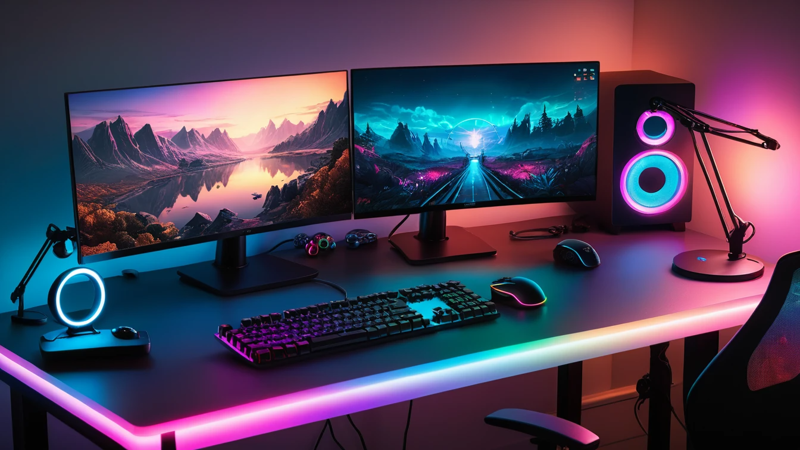
How to stream your games like a pro with this beginner setup guide. Learn gear, software, and tips to start streaming smoothly today.
To stream games like a pro, you need a decent PC or console, streaming software like OBS, a stable internet connection, and basic audio/video gear. Set up your stream layout, adjust settings, and start broadcasting on platforms like Twitch or YouTube consistently.
Want to stream your gameplay like your favorite creators—but don’t know where to start?
Here’s the simple truth: you don’t need expensive gear or advanced skills to start streaming like a pro. With the right setup, basic tools, and a smart plan, you can go live and look professional—even as a beginner.
🎮 How To Stream Your Games Like A Pro — Beginner Setup Guide
🧠 Understanding Game Streaming Basics
Game streaming means broadcasting your gameplay live to viewers online. Platforms like Twitch and YouTube Gaming make this easy. You play your game while others watch, chat, and interact with you in real time.
At first, it may feel confusing. But once you understand the basics, it becomes simple. You need three things: a device to play, software to stream, and a platform to broadcast.
Think of streaming like running your own mini TV channel. You are the host, the game is your content, and your viewers are your audience.
🎯 Choosing The Right Streaming Platform
Picking the right platform is your first big step. Each platform has its own vibe and audience. Some are better for beginners, while others are more competitive.
Here are the most popular options:
- Twitch – Best for gaming-focused audiences
- YouTube Gaming – Great for growth and discoverability
- Facebook Gaming – Easier reach for beginners
If you’re just starting, choose one platform and stick with it. This helps you grow faster and build a loyal audience.
💻 Minimum PC Requirements For Streaming
Your PC doesn’t need to be super expensive. But it should handle gaming and streaming together without lag.
Here’s a simple guide:
| Component | Minimum Requirement | Recommended |
| CPU | i5 / Ryzen 5 | i7 / Ryzen 7 |
| RAM | 8 GB | 16 GB |
| GPU | GTX 1050 | RTX 3060 |
| Storage | HDD | SSD |
A better setup gives smoother streams. But even basic systems can work with optimized settings.
🎮 Streaming From Console Vs PC
You can stream from both consoles and PCs. Each option has its pros and cons.
Console Streaming:
- Easy setup
- Built-in streaming tools
- Limited customization
PC Streaming:
- More control
- Better quality
- Flexible overlays and effects
If you want a pro-level stream, PC is the better choice. But consoles are perfect for beginners.
📶 Importance Of Internet Speed
Your internet speed can make or break your stream. A slow connection causes lag, buffering, and poor quality.
You need:
- Upload speed: At least 5 Mbps (10+ Mbps is ideal)
- Stable connection: Wired is better than Wi-Fi
Always test your internet before going live. Smooth streaming depends heavily on this.
🎙️ Choosing The Right Microphone
Audio quality matters more than video. Viewers may forgive low video quality, but not bad sound.
Here are good beginner options:
- USB microphones (easy to use)
- Lavalier mics (cheap and portable)
- Headset mics (budget-friendly)
Clear voice = better engagement. So don’t ignore your mic setup.
📷 Do You Need A Webcam?
A webcam is not required, but it helps build connection. Viewers like seeing the person behind the gameplay.
Benefits of using a webcam:
- Builds trust
- Makes streams more engaging
- Helps you stand out
If you’re shy, you can skip it at first. But adding a camera later is a great upgrade.
🖥️ Best Streaming Software For Beginners
Streaming software is your control center. It connects your game, camera, and audio into one stream.
Top choices include:
- OBS Studio – Free and powerful
- Streamlabs OBS – Beginner-friendly
- XSplit – Easy but limited free version
OBS Studio is the most popular. It’s free and used by professionals.
⚙️ Setting Up OBS Studio Step-By-Step
Setting up OBS may look hard. But it’s actually simple once you follow steps.
- Download and install OBS
- Add your game source
- Add microphone and webcam
- Set output resolution
- Connect to your streaming platform
Take your time here. A good setup ensures a smooth stream later.
🎨 Creating A Clean Stream Layout
Your stream layout is what viewers see. A clean layout looks professional and easy to watch.
Include:
- Game screen
- Webcam frame
- Alerts (followers, donations)
- Chat box (optional)
Keep it simple. Too many elements can distract viewers.
🔊 Optimizing Audio Settings
Balanced audio is key. Your voice should be clear over game sounds.
Tips:
- Lower game volume slightly
- Keep mic volume higher
- Avoid background noise
Always test your audio before going live. Even small tweaks can improve quality.
🎥 Best Video Settings For Smooth Streams
Video settings affect performance and quality. You need to balance both.
| Setting | Recommended Value |
| Resolution | 720p or 1080p |
| FPS | 30 or 60 |
| Bitrate | 3000–6000 kbps |
Higher settings look better but require more power. Start lower and upgrade later.
🚀 Going Live For The First Time
Your first stream doesn’t need to be perfect. Just focus on starting.
Before going live:
- Check audio and video
- Set a catchy title
- Choose the right game category
Once live, relax and enjoy. Confidence grows with practice.
🧩 Adding Overlays And Alerts
Overlays make your stream look professional. Alerts notify you of new followers or donations.
Popular tools:
- StreamElements
- Streamlabs widgets
These tools are easy to set up. They add life and excitement to your stream.
📅 Building A Consistent Streaming Schedule
Consistency is key to growth. Streaming randomly won’t build an audience.
Create a schedule like:
- 3–4 days per week
- Fixed time slots
This helps viewers know when to join. It builds trust and habit.
📈 Growing Your Audience Faster
Growth takes time. But smart strategies can speed it up.
- Play trending games
- Engage with chat
- Promote on social media
- Collaborate with other streamers
Remember, personality matters more than skill. People stay for you, not just the game.
⚠️ Common Beginner Mistakes To Avoid
Avoid these mistakes to save time and frustration:
- Ignoring audio quality
- Streaming without a plan
- Overloading your layout
- Giving up too early
Every streamer starts small. Learn, improve, and stay consistent.
💡 Pro Tips To Level Up Your Stream
Want to stand out quickly? Try these tips:
- Use catchy stream titles
- Add background music softly 🎵
- Interact with every viewer
- Upgrade gear slowly
Small improvements create big results over time.
🛠️ Budget Setup Vs Pro Setup Comparison
| Setup Type | Cost Range | Quality Level |
| Beginner | $0–$200 | Basic |
| Intermediate | $200–$800 | Good |
| Pro | $800+ | High-end |
Start small. Upgrade as you grow. You don’t need a pro setup on day one.
🧠 Mindset Of A Successful Streamer
Streaming is not just about tools. It’s about mindset.
- Be patient
- Stay consistent
- Keep learning
- Enjoy the process
Growth is slow at first. But consistency always wins in the long run.
✅ Conclusion
Streaming your games like a pro is easier than you think. You don’t need expensive gear or perfect skills to start. Focus on the basics, build a simple setup, and improve step by step. Stay consistent, engage with your audience, and most importantly—have fun while streaming.
❓ FAQs
🔹 How to start streaming with low budget setup?
You can start streaming using a basic PC or console and free software like OBS. Use a simple headset mic for audio. Focus on stable internet and clean setup first.
🔹 What internet speed is needed for streaming games?
You need at least 5 Mbps upload speed for smooth streaming. Higher speeds give better quality. A wired connection works best.
🔹 Is OBS better for beginner game streaming?
Yes, OBS is free and very powerful. It may feel complex at first, but it’s easy after setup. Many professionals also use OBS.
🔹 Do I need a webcam to stream games?
No, a webcam is optional for beginners. But it helps build connection with viewers. You can add it later as you grow.
🔹 How often should beginners stream weekly?
Streaming 3–4 times per week is a good start. Keep your timing consistent. This helps build a loyal audience.

Top Features To Look For In A Gaming Chair – Ultimate Comfort Guide

Assassin’s Creed: Shadows Review – Stunning Stealth Comeback

5 Hidden Windows Settings That Instantly Boost Game Performance Fast

How Cross-Platform Gaming Is Breaking Barriers Between Consoles
