
PC & Console Gaming
How To Build A Silent Gaming PC — Ultimate Quiet Win

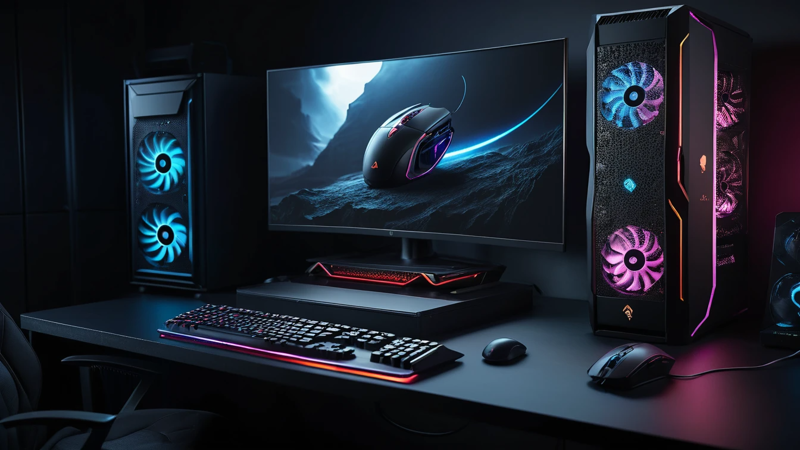
How to build a silent gaming PC without overheating or lag. Learn proven tips to eliminate fan noise and enjoy smooth, quiet gaming.
How to build a silent gaming PC means choosing the right parts, controlling airflow, and reducing vibration so your system runs powerful yet quiet. With smart component choices and proper setup, you can enjoy high FPS gaming without annoying fan noise or distracting hums.
Have you ever cranked up your favorite game only to hear your PC louder than the explosions on screen? 🎮
That constant fan noise can kill immersion fast. The good news? You can build a gaming PC that stays cool, powerful, and nearly silent.
The key is balance. You want strong performance without unnecessary airflow chaos. A silent gaming PC focuses on efficient cooling, quality parts, and smart layout decisions. Once done right, you’ll hear the game—not your hardware 😌.
How To Build A Silent Gaming PC — No More Fan Noise!
Understand What Makes A PC Loud 🔊
Noise comes from moving parts. Fans spin. Hard drives vibrate. Cheap cases rattle. When parts work harder than needed, sound increases fast.
Most gaming PCs get loud because of poor airflow design. Hot components force fans to spin faster. Faster fans equal more noise. Fix heat, and noise drops naturally.
Another big issue is vibration. Even quiet fans get loud if mounted poorly. Understanding these basics helps you stop noise at the source.
Set Clear Goals For A Silent Build 🎯
Silence doesn’t mean zero sound. It means barely noticeable. Decide how quiet you want your system to be during gaming.
Ask yourself a few things:
- Do you game with speakers or headphones?
- Do you play long sessions?
- Is your PC on the desk or under it?
Clear goals help you avoid overspending. You don’t need extreme solutions if moderate silence works for you.
Choose A Quiet PC Case First 🧱
The case controls airflow and noise. A good silent case uses thick panels and sound-dampening material.
Look for features like:
- Foam-lined panels
- Solid front panels with side vents
- Rubber grommets for cables and drives
Avoid cheap, thin metal cases. They amplify vibration like drums. A solid case instantly lowers overall noise.
| Quiet Case Feature | Why It Matters |
| Thick Steel Panels | Reduces vibration noise |
| Sound-Dampening Foam | Absorbs fan and airflow sound |
| Cable Grommets | Prevents rattling |
Pick Efficient Components That Run Cooler ❄️
Cooler parts need less airflow. Less airflow means less noise. Simple math.
Modern CPUs and GPUs vary a lot in efficiency. Choose newer architectures known for better performance per watt. They stay cooler under load.
Avoid overpowered parts you don’t need. A slightly lower-tier GPU often runs quieter with minimal FPS loss.
Use A Silent CPU Cooler 🧊
Stock coolers are loud. Always. Swap them out.
Large air coolers with big heatsinks work best. They cool better at lower fan speeds. Lower speeds equal near silence.
Look for:
- 120mm or 140mm fans
- Wide fin spacing
- Rubber fan mounts
Liquid coolers can be quiet, but pumps add noise. High-end air coolers are usually quieter and simpler.
Select Low-Noise Case Fans 🌬️
Not all fans are equal. Silent builds need quality fans designed for low RPM use.
Key things to check:
- Fluid dynamic or magnetic bearings
- Rated noise under 20 dBA
- PWM control support
Use fewer fans, not more. Two or three quality fans beat six cheap ones every time.
| Fan Type | Noise Level | Best Use |
| 120mm PWM Fan | Very Low | General airflow |
| 140mm Silent Fan | Ultra Low | Front intake |
| High RPM Fan | Loud | Avoid for silent builds |
Optimize Fan Placement And Airflow 🔄
Airflow should be smooth, not aggressive. Silent PCs prefer slow, steady airflow.
Basic rule:
- Front or bottom intake
- Rear or top exhaust
Avoid mixing directions. That creates turbulence and noise. Also, keep cables tidy. Obstructions force fans to work harder.
A clean airflow path keeps temps low with minimal sound.
Use Fan Curves To Control Noise 📉
Default fan settings are loud. Always adjust fan curves in BIOS or software.
Set fans to:
- Stay very slow under light load
- Ramp up only when needed
- Avoid sudden speed jumps
A smooth curve prevents annoying fan revving. This alone can cut noise in half without touching hardware.
Choose A Quiet Graphics Card 🎮
The GPU is often the loudest part. Pick models designed for silence.
Look for:
- Large heatsinks
- Dual or triple fan designs
- Zero RPM mode at idle
Avoid blower-style GPUs. They’re compact but loud. A quiet GPU makes the biggest difference during gaming.
Go SSD-Only For Storage 💾
Hard drives make noise. They spin, click, and vibrate. SSDs are silent.
Use:
- NVMe SSD for OS and games
- SATA SSD for extra storage
If you need a hard drive, mount it with rubber isolation. Better yet, keep it external.
| Storage Type | Noise Level | Recommendation |
| NVMe SSD | Silent | Best choice |
| SATA SSD | Silent | Great backup |
| HDD | Noisy | Avoid if possible |
Reduce Vibration Inside The Case 🔕
Even quiet parts get loud if they vibrate.
Use:
- Rubber fan mounts
- Soft PSU pads
- Anti-vibration drive trays
Make sure screws are snug but not overtightened. Metal-on-metal contact amplifies sound fast.
Small fixes here bring big silence gains.
Pick A Quiet Power Supply ⚡
The PSU fan runs often. Cheap units are noisy and inefficient.
Choose:
- 80 Plus Gold or better
- Semi-passive or fan-stop mode
- High-quality internal components
A good PSU stays silent during light and moderate gaming loads.
Manage Heat With Smart Cable Routing 🧵
Messy cables block airflow. Blocked airflow equals hotter parts and louder fans.
Route cables behind the motherboard tray. Tie them flat. Remove unused cables if possible.
Better airflow means fans can spin slower and quieter.
Use Software To Monitor Temps 🖥️
You can’t fix what you don’t see. Monitor temps during gaming.
Watch:
- CPU temperature
- GPU temperature
- Fan speeds
If temps are stable and low, you’re winning. Silent PCs rely on awareness and small adjustments.
Avoid Common Silent PC Mistakes 🚫
Many builds fail because of small errors.
Avoid:
- Too many fans
- Cheap cases
- Ignoring fan curves
- Overclocking aggressively
Silence and overclocking don’t mix well. Stability and efficiency always sound better.
Test And Fine-Tune Your Build 🔧
After building, test under real gaming load. Listen closely.
Adjust:
- Fan curves
- GPU power limits
- Case fan speeds
Fine-tuning takes time, but it’s worth it. Each tweak brings you closer to true quiet gaming bliss 😎.
Enjoy Immersive Gaming Without Distractions 🎧
A silent gaming PC changes everything. You hear footsteps, music, and atmosphere clearly.
No more background hum. No more fan roar during intense scenes. Just smooth, immersive gameplay.
Once you experience silent gaming, you’ll never go back.
Conclusion
Building a silent gaming PC is about smart choices, not magic. Focus on efficient components, quality cooling, and controlled airflow. Reduce vibration and fine-tune fan behavior. With patience and planning, you can enjoy powerful gaming without the noise.
FAQs
How do I make my gaming PC quieter at home?
Start by adjusting fan curves and improving airflow. Replace stock coolers with quieter options. Use SSDs instead of hard drives.
What parts matter most for a silent gaming PC?
The case, CPU cooler, GPU, and fans matter most. These parts directly affect noise levels. Quality choices make a huge difference.
Can a high-end gaming PC be silent?
Yes, if built correctly. Efficient components and proper cooling keep noise low. Power doesn’t have to mean loud.
Are liquid coolers quieter than air coolers?
Not always. Pumps add noise over time. High-end air coolers are often quieter and more reliable.
Why is my PC loud only during gaming?
Gaming increases heat and fan speed. Poor airflow or aggressive fan curves cause sudden noise spikes. Adjusting settings usually fixes it.

Best Gaming Monitors For FPS Games – Ultimate Speed & Clarity Win

How To Build A Silent Gaming PC — Ultimate Quiet Win

Top 5 Rising Esports Stars – Explosive And Inspiring

Starfield Review: A Bold, Epic, and Thrilling Adventure

Biggest Game Leaks And Rumors – Explosive Truths Fans Love

How to Optimize Your Phone for Smooth Gaming Performance – Powerful & Easy Tips
Biggest Game Leaks And Rumors – Explosive Truths Fans Love
Top 5 Rising Esports Stars – Explosive And Inspiring
Starfield Review: A Bold, Epic, and Thrilling Adventure
How To Build A Silent Gaming PC — Ultimate Quiet Win
-

 Mobile Gaming2 months ago
PUBG Mobile vs COD Mobile: Ultimate Comparison Guide (Best Choice!)
-

 Gaming Guides & Tips2 months ago
10 Common Gaming Mistakes New Players Make – Smart Fixes & Tips
-

 PC & Console Gaming2 months ago
PS5 Pro vs Xbox Series X: Ultimate Comparison Guide for Gamers (Powerful & Clear)
-

 Gaming News1 month ago
Biggest Gaming Announcements From The Latest Game Awards – Exciting Highlights & Reveals